Dota2PornFx troubleshooting guide
Dota 2 Mod Troubleshooting: Fix Mods That Stop Working
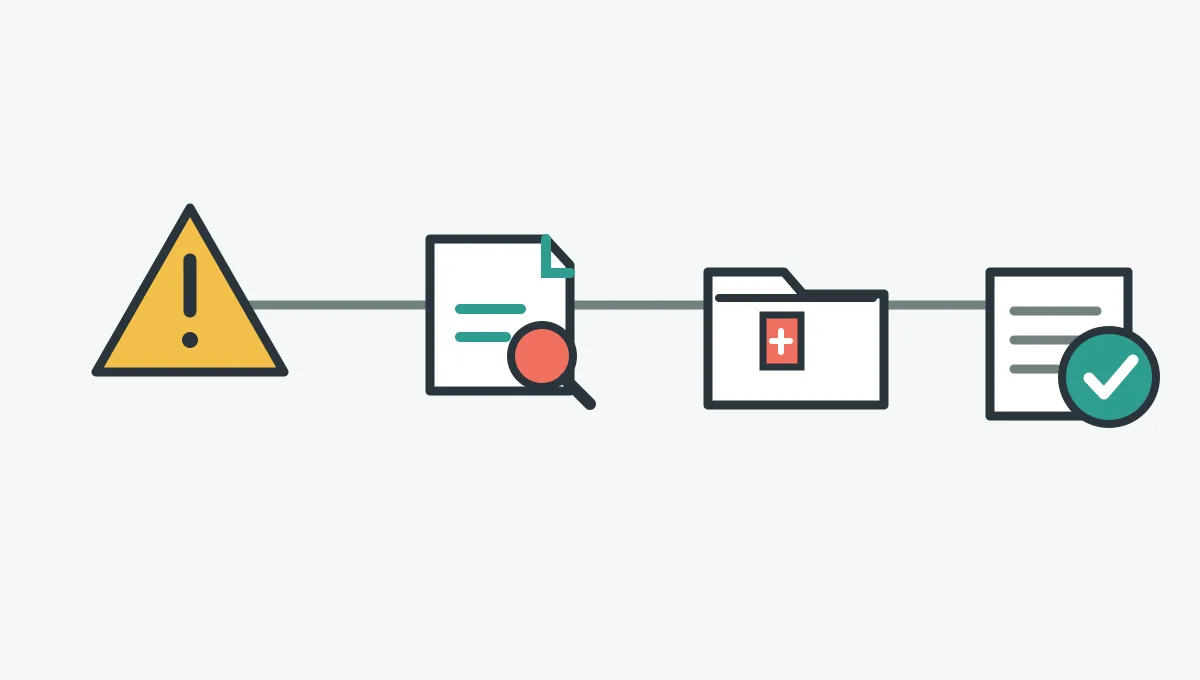
Work from the visible symptom to one controlled test. Check the package and install path, isolate recent changes, then restore a clean baseline before trying another fix.
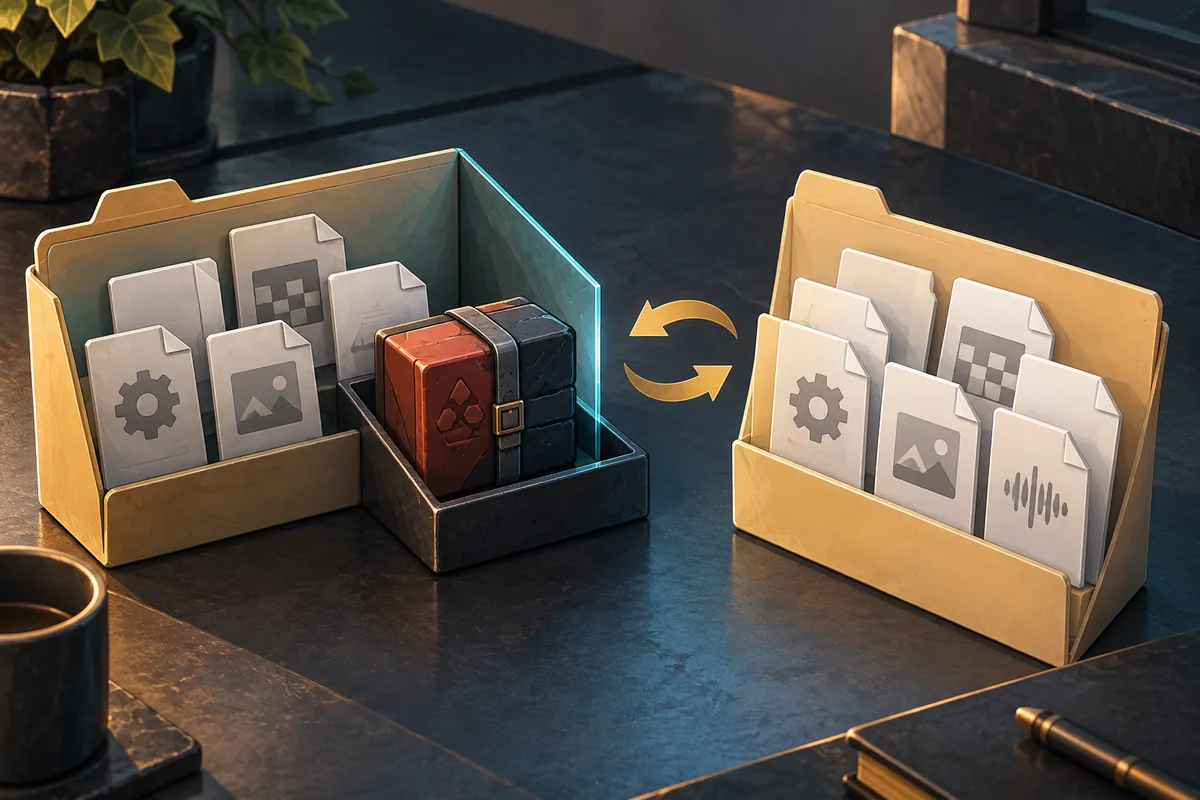
Dota 2 mod troubleshooting: start with the symptom
Dota 2 mod troubleshooting is easier when you separate a missing mod, broken VPK, visual conflict, and failure after an update. Note what changed and whether the issue appears in the normal client or only one mode before reinstalling anything.
A local replacement may be missing, misplaced, incorrectly named, incomplete, or overwritten by an update. Two packages can also replace the same path. These steps narrow the cause without assuming every community mod uses the same installer or is supported by Valve.
Record
Write down the symptom, the last working session, the mod source, and any Dota 2 update since then.
Isolate
Disable or remove one recent change at a time. Keep other packages untouched while comparing the result.
Restore
Keep a copy of original files and use Steam verification only after you know which files were changed.
A safe Dota 2 mod troubleshooting order
Start with a narrow test, not a full reinstall. Close Dota 2 before moving files, keep a backup outside the game folder, and avoid changing launch options, VPK names, and several mods at once. Reverse one change and repeat the same test.
Use the table to choose a first check, not as a guarantee. Workshop items, local VPKs, terrain replacements, and configuration tweaks can have different paths and rollback steps.
| What you notice | First check | Avoid doing first |
|---|---|---|
| Nothing changes in game | Confirm the active game folder and exact package location. | Copying the same files into several folders. |
| A VPK is ignored | Check the archive name and whether all split parts are present. | Renaming files until one appears to load. |
| Only one effect or model is wrong | Disable the most recently installed package and retest. | Replacing unrelated folders or every VPK. |
| The game changed after a patch | Test without local replacements and inspect the mod source notes. | Reapplying an old path or launch command from memory. |
| Dota 2 fails to launch | Restore the last changed file or launch option, then test the clean client. | Adding more parameters before isolating the failure. |
- Take a note or screenshot of the current symptom before editing.
- Close the game and identify the exact mod package and source instructions.
- Change one file or setting, then launch and test the same scene again.
- If the result is unchanged, put that item back before testing another cause.
When a Dota 2 mod is missing or not showing
If a Dota 2 mod does not appear, verify the game installation path first. Steam libraries can live on different drives, and a second test installation or old backup can look plausible while the game is reading another directory. In Steam, open the Dota 2 library page, use its management menu to browse local files, and compare that folder with the path in the mod’s instructions.
Next, check the package itself. A download may be an archive that still needs extraction, a VPK plus data parts, or a set of files intended for one named subfolder. Confirm the extension, file size, archive contents, and spelling against the source instructions. Do not rename an index VPK or move split parts independently: a package that points to missing data cannot load reliably.
- Check that the download finished and can be opened; re-download only from the original source if it is incomplete.
- Compare the installed files with the mod page’s current instructions, not an old forum snippet.
- Look for duplicate copies in another Dota 2 library and remove only the copy you can identify.
- For Dota2PornFx custom VPK instructions, use the upstream guide for that exact method; its folder and naming convention is not a universal rule for every mod.
Check VPK integrity, split files, and load conflicts
Some large VPK archives use a directory file plus numbered data parts. If a package includes `_dir.vpk`, check that its matching parts are present in the expected folder. A missing part, incomplete download, or unopened nested archive can make it unusable.
If a complete package still fails, check for a path mismatch or overlap. Two mods may replace the same game asset, and the result can depend on the install method. Disable one, test, then restore it before checking another. The linked VPK guide covers the format; this page focuses on diagnosis.
| Finding | Likely meaning | Next action |
|---|---|---|
| `_dir.vpk` without numbered parts | A split archive may be incomplete. | Check the original download and preserve the part names. |
| Archive opens but expected folder is missing | The package may be nested or for a different install method. | Read the source steps and inspect one level deeper. |
| One of two mods works | Both may replace the same asset path. | Test each package alone and keep the preferred one. |
| Files vanished after patching | The game update may have replaced local files. | Return to a clean state, then check for an updated source package. |
Fix mod conflicts and problems after an update
List the packages that affect the broken category, such as a hero model, terrain, sound, or interface file. Disable the newest one and repeat the same test. If the result clears, leave that package out while checking the others; do not change load order and file names together.
After a Dota 2 update, treat the old setup as unverified. A mod can remain on disk but no longer match the client. Check the author’s current compatibility notes; with no current guidance, leave it disabled instead of reusing an old workaround.
- Disable all local replacements for one baseline launch; do not delete files you have not identified.
- Enable one package and reproduce the same symptom, then turn it off before the next package.
- Keep a short record of which package changes the result and what files it writes.
- After a patch, check the source date and instructions before reinstalling a previously working package.
Restore clean Dota 2 files and verify through Steam
If you can identify the changed files, move or restore those files from your own backup first. If the client still has missing official content or crashes, Steam Support recommends verifying the game’s installed files. Open Dota 2 in your Steam Library, choose Properties, select Installed Files, and run Verify integrity of game files. Steam says the check can take several minutes.
Verification checks the installed game; it is not a mod manager and may replace local changes. Steam notes that some files can fail verification because local configuration files are intentionally not replaced. Review the result in context instead of repeating the check as a general compatibility test.

- Back up files you intentionally changed and close Dota 2.
- Remove only the identified mod files or restore your known clean backup.
- Use Steam file verification when official game files appear missing or damaged.
- Launch once without replacements and confirm the base game works before adding anything back.
Limits, account safety, and when to stop
Community mods are not official Dota 2 support features. A troubleshooting result cannot establish that a package is compatible with every client patch, permitted in every mode, or safe for an account. Avoid modded files if you cannot identify their source or restore the original state. Do not use a visual change to gain hidden information or alter competitive behavior; consult current Valve guidance for account and gameplay rules.
Dota 2 mod troubleshooting FAQ
Related Dota 2 mod guides
Sources and verification
- Steam Support: Verify Integrity of Game Files — Official steps for restoring or checking installed game files.
- Dota2PornFx Wiki: Troubleshooting — Upstream community-specific mod notes, checked 2026-10-23; individual commands and paths apply only to their stated method.
- Dota2PornFxWeb source repository — Upstream project and resource instructions; this site is an independent index.